


同事习惯在重装系统前,习惯使用dd命令将原系统清除,命令如下:
[root@localhost ~]# dd if=/dev/zero of=/dev/sda bs=1M count=1
1+0 records in
1+0 records out
1048576 bytes (1.0 MB, 1.0 MiB) copied, 0.0021922 s, 478 MB/s
此命令会将sda的分区信息清除,然后重启系统就会自动进行PXE安装
但是,因为执行此命令所造成的后果不会立刻显现,所以会发生无意识情况下误执行了此命令,但未发现,然后某天重启系统后,突然发现系统盘无数据的情况
[root@rescue ~]# lsblk
NAME MAJ:MIN RM  SIZE RO TYPE MOUNTPOINTS
sda    8:0    0  100G  0 disk
sr0   11:0    1 1024M  0 rom
此时可以使用testdisk来进行修复
[root@rescue ~]# yum -y install testdisk
然后执行命令
[root@rescue ~]# testdisk /dev/sda
此时,显示如下
TestDisk 7.2, Data Recovery Utility, February 2024
Christophe GRENIER <grenier@cgsecurity.org>
https://www.cgsecurity.org

  TestDisk is free software, and
comes with ABSOLUTELY NO WARRANTY.

Select a media and choose 'Proceed' using arrow keys:
>Disk /dev/sda - 107 GB / 100 GiB - Virtual disk


>[Proceed ]  [  Quit  ]

Note:
Disk capacity must be correctly detected for a successful recovery.
If a disk listed above has an incorrect size, check HD jumper settings and BIOS
detection, and install the latest OS patches and disk drivers.
选择继续,回车
TestDisk 7.2, Data Recovery Utility, February 2024
Christophe GRENIER <grenier@cgsecurity.org>
https://www.cgsecurity.org


Disk /dev/sda - 107 GB / 100 GiB - Virtual disk

Please select the partition table type, press Enter when done.
>[Intel  ] Intel/PC partition
 [EFI GPT] EFI GPT partition map (Mac i386, some x86_64...)
 [Humax  ] Humax partition table
 [Mac    ] Apple partition map (legacy)
 [None   ] Non partitioned media
 [Sun    ] Sun Solaris partition
 [XBox   ] XBox partition
 [Return ] Return to disk selection


Note: Do NOT select 'None' for media with only a single partition. It's very
rare for a disk to be 'Non-partitioned'.
继续回车
TestDisk 7.2, Data Recovery Utility, February 2024
Christophe GRENIER <grenier@cgsecurity.org>
https://www.cgsecurity.org


Disk /dev/sda - 107 GB / 100 GiB - Virtual disk
     CHS 13054 255 63 - sector size=512

>[ Analyse  ] Analyse current partition structure and search for lost partitions
 [ Advanced ] Filesystem Utils
 [ Geometry ] Change disk geometry
 [ Options  ] Modify options
 [ MBR Code ] Write TestDisk MBR code to first sector
 [ Delete   ] Delete all data in the partition table
 [ Quit     ] Return to disk selection


Note: Correct disk geometry is required for a successful recovery. 'Analyse'
process may give some warnings if it thinks the logical geometry is mismatched.
继续回车
TestDisk 7.2, Data Recovery Utility, February 2024
Christophe GRENIER <grenier@cgsecurity.org>
https://www.cgsecurity.org

Disk /dev/sda - 107 GB / 100 GiB - CHS 13054 255 63
Current partition structure:
     Partition                  Start        End    Size in sectors


Partition sector doesn't have the endmark 0xAA55


*=Primary bootable  P=Primary  L=Logical  E=Extended  D=Deleted
>[Quick Search]
                            Try to locate partition
继续回车
TestDisk 7.2, Data Recovery Utility, February 2024
Christophe GRENIER <grenier@cgsecurity.org>
https://www.cgsecurity.org

Disk /dev/sda - 107 GB / 100 GiB - CHS 13054 255 63
     Partition               Start        End    Size in sectors
>* Linux                    0  32 33   261  53 48    4194304
 P Linux LVM              261  53 49 13054  42 44  205518848


Structure: Ok.  Use Up/Down Arrow keys to select partition.
Use Left/Right Arrow keys to CHANGE partition characteristics:
*=Primary bootable  P=Primary  L=Logical  E=Extended  D=Deleted
Keys A: add partition, L: load backup, T: change type,
     Enter: to continue
XFS CRC enabled, blocksize=4096, 2147 MB / 2048 MiB
继续回车
TestDisk 7.2, Data Recovery Utility, February 2024
Christophe GRENIER <grenier@cgsecurity.org>
https://www.cgsecurity.org

Disk /dev/sda - 107 GB / 100 GiB - CHS 13054 255 63

     Partition                  Start        End    Size in sectors

 1 * Linux                    0  32 33   261  53 48    4194304
 2 P Linux LVM              261  53 49 13054  42 44  205518848


 [  Quit  ]  [ Return ]  [Deeper Search] >[ Write  ]
                       Write partition structure to disk
选择Write继续回车
TestDisk 7.2, Data Recovery Utility, February 2024
Christophe GRENIER <grenier@cgsecurity.org>
https://www.cgsecurity.org

Write partition table, confirm ? (Y/N)
输入Y
TestDisk 7.2, Data Recovery Utility, February 2024
Christophe GRENIER <grenier@cgsecurity.org>
https://www.cgsecurity.org


You will have to reboot for the change to take effect.


>[Ok]
直接回车
TestDisk 7.2, Data Recovery Utility, February 2024
Christophe GRENIER <grenier@cgsecurity.org>
https://www.cgsecurity.org


Disk /dev/sda - 107 GB / 100 GiB - Virtual disk
     CHS 13054 255 63 - sector size=512

 [ Analyse  ] Analyse current partition structure and search for lost partitions
 [ Advanced ] Filesystem Utils
 [ Geometry ] Change disk geometry
 [ Options  ] Modify options
 [ MBR Code ] Write TestDisk MBR code to first sector
 [ Delete   ] Delete all data in the partition table
>[ Quit     ] Return to disk selection


Note: Correct disk geometry is required for a successful recovery. 'Analyse'
process may give some warnings if it thinks the logical geometry is mismatched.
选择Quit退出
TestDisk 7.2, Data Recovery Utility, February 2024
Christophe GRENIER <grenier@cgsecurity.org>
https://www.cgsecurity.org

  TestDisk is free software, and
comes with ABSOLUTELY NO WARRANTY.

Select a media and choose 'Proceed' using arrow keys:
>Disk /dev/sda - 107 GB / 100 GiB - Virtual disk


 [Proceed ] >[  Quit  ]
                                  Quit program
Note:
Disk capacity must be correctly detected for a successful recovery.
If a disk listed above has an incorrect size, check HD jumper settings and BIOS
detection, and install the latest OS patches and disk drivers.
继续Quit退出
此时执行命令已经可以看到分区了
[root@rescue ~]# lsblk
NAME   MAJ:MIN RM  SIZE RO TYPE MOUNTPOINTS
sda      8:0    0  100G  0 disk
├─sda1   8:1    0    2G  0 part
└─sda2   8:2    0   98G  0 part
sr0     11:0    1 1024M  0 rom
[root@rescue ~]# lsblk -f
NAME FSTYPE FSVER LABEL UUID                                   FSAVAIL FSUSE% MOUNTPOINTS
sda
├─sda1
│    xfs                38a68ee4-f4b2-4cce-a141-a35f9a912bae
└─sda2
     LVM2_m LVM2        mdSrzr-G62k-6QU6-cUtI-49lJ-U7uX-ApbCBI
sr0
如果遇到LVM识别不出来的情况,可以看另一篇笔记lvm不识别 - 陈佳浩的博客
但是在此时重启,会发现如下状态,无法正常启动系统
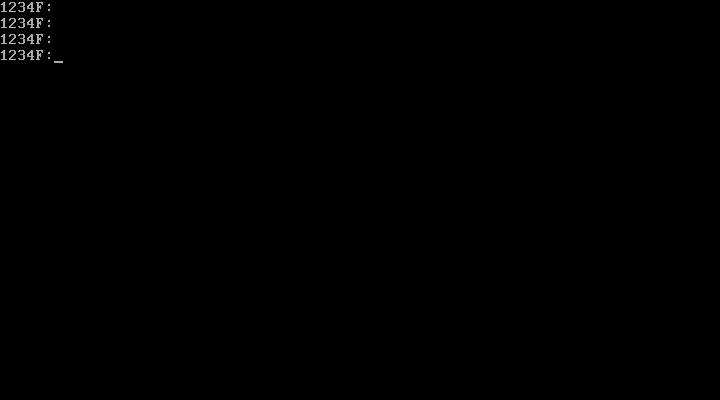
需要重新安装grub引导
重新进入rescue模式
此时直接执行 grub2-install会报错
[root@rescue ~]# grub2-install /dev/sda
Installing for i386-pc platform.
grub2-install: error: failed to get canonical path of `rootfs'.
需要将文件系统全部挂载上
[root@rescue ~]# mount /dev/root/lv_root /mnt/
[root@rescue ~]# mount /dev/root/lv_var /mnt/var/
[root@rescue ~]# mount /dev/root/lv_home /mnt/home/
[root@rescue ~]# mount /dev/sda1 /mnt/boot/
[root@rescue ~]# mount --bind /proc/ /mnt/proc/
[root@rescue ~]# mount --bind /sys/ /mnt/sys/
[root@rescue ~]# mount --bind /dev /mnt/dev/
[root@rescue ~]# chroot /mnt/
[root@rescue /]# grub2-install /dev/sda
Installing for i386-pc platform.
Installation finished. No error reported.
[root@rescue /]# exit
exit
[root@rescue ~]# reboot
此时就可以正常进入系统了